How to Create a Free QR Code in 3 Steps

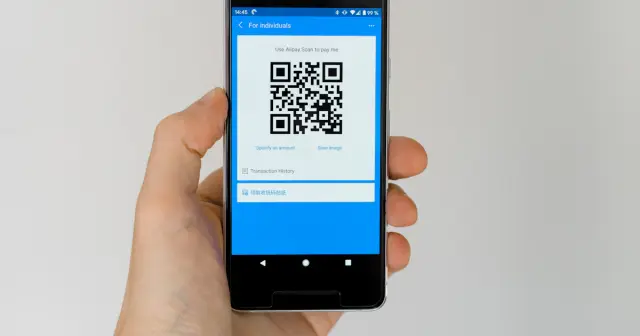
Creating a QR Code no longer requires a special app or a subscription fee. With an online generator like I Need Barcode, you can create a QR Code in seconds right from your browser, on either a phone or a laptop.
Step 1: Choose the barcode type
Open the QR Code generator, then select QR Code in the Barcode type section. A QR Code is the best choice if the barcode will be scanned with a phone camera.
Step 2: Enter the data
Choose the type of data you need:
- URL: a link to a website, online store, Google Maps, or a form.
- WiFi: the network name and password, so guests can connect without typing.
- Contact: name, phone number, email, and company in a digital business card format.
- WhatsApp: a number and an opening message, so customers go straight to a chat with you.
- Text, Email, Phone, SMS, Location, Event for other needs.
The preview updates instantly every time you type, so you can check the result before downloading.

Step 3: Adjust the look and download
In the Settings section, adjust the module size (the larger it is, the sharper it prints), the colors, and the margin. In the Design section, you can give it a shape such as a circle or a heart, a dot style, and a frame with text such as "SCAN ME". When you are done, press Download PNG.
Tips to make your QR Code easy to scan
- Test before printing. Scan it with two or three different phones from a reasonable distance.
- Use strong contrast. A dark color on a light background is the safest. Avoid light QR Codes on a dark background.
- Do not make it too small. For scanning up close, about 2 × 2 cm is the safe minimum. The farther the scanning distance, the larger it should be. Also read barcode sizes for printing.
- Leave empty space around the QR Code so it does not touch other images or text.
- Use a short link. Less data produces a less dense pattern that is easier to read.
Need many QR Codes at once?
Turn on Bulk mode, write one piece of data per line (up to 100 lines), then download them all in a single ZIP file. This works well for inventory labels, participant cards, or event tickets.
Frequently Asked Questions
Can a QR Code created for free be used for business?
Yes. The static QR Codes you create are free to use on packaging, brochures, menus, or promotional materials, with no watermark and no license fee.
Can the content of a QR Code be changed after it is printed?
A static QR Code cannot be changed after it is printed. If its content is likely to change, point the QR Code to a page whose content you can update yourself, such as a page on your website.
What image format is best for printing a QR Code?
PNG, because the edges of the squares stay sharp. Download it with a large enough module size, then scale it down in your design app if needed, not the other way around.